---
title: How to Use SANAD AI Summary in CV Search?
description: How to Use SANAD AI Summary in CV Search?
---
[Skip to content](https://lp.talentera.com/en/help/how-to-use-sanad-ai-summary-in-cv-search#main-content)
English
Show submenu for translations

Open main navigation
Close main navigation
- English
Show submenu for translations
How can we help you?
- There are no suggestions because the search field is empty.
1. [Talentera Help Center](https://lp.talentera.com/en/help?hsLang=en)
2. [Employers](https://lp.talentera.com/en/help/employers?hsLang=en)
3. [Sanad AI Assistant](https://lp.talentera.com/en/help/employers?hsLang=en#sanad-ai-assistant)
# How to Use SANAD AI Summary in CV Search?
### **Overview**
This article walks through the steps to generate a SANAD AI Summary when reviewing candidates in CV Search. It covers generating the summary, reading its output, taking action on a candidate, and regenerating when needed.
You need access to CV Search and to have the SANAD AI features enabled on your account to use this feature.
### **Step-by-Step: Generating a Summary**
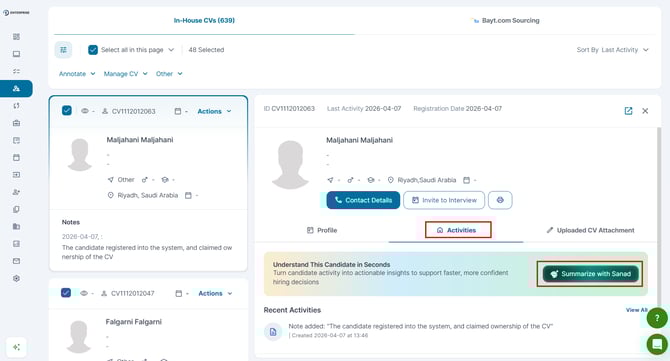
1. Go to CV Search from the main navigation.
2. Search for candidates using your preferred filters.
3. Click on a candidate’s name to open their profile.
4. Click the Activities tab inside the profile.
5. Click Summarize with Sanad.
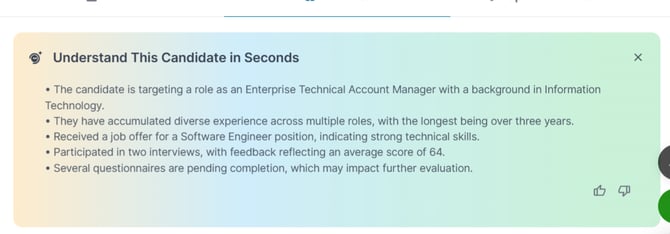
6. The summary appears on screen within seconds.

| **📌 Note:** If the Activities tab or 'Summarize with Sanad' button is not visible, SANAD AI features may not be enabled on your account. Contact your admin. |
| --- |
### **Reading the Summary**
The summary is organized in bullet points by category:
- Application history, roles applied to, and dates.
- Missed steps, scheduled but incomplete interviews, questionnaires, or assessments.
- Evaluation scores, ratings from evaluators across your account.
- Pipeline outcomes, stages where the candidate progressed or was rejected.
If a category has no recorded data, it will not appear. This reflects what is in your system; it is not a gap in the feature gap.
### **Acting on the Candidate After Reviewing**
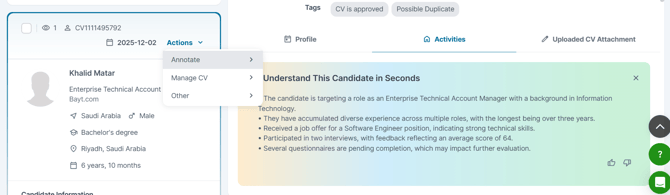
From the same profile screen, you can:
- Add to a job inbox.
- Invite to Apply for a live role.
- Add a note.
- Continue to the full profile for a deeper review.
### **Regenerating a Summary**
The summary auto-refreshes when new activity is recorded. If you want to force a refresh, click Summarize with Sanad again.
**Frequently Asked Questions**
**Does generating a summary consume AI credits?**
No. Each manual generation or regeneration does not consume credits.
**Can I generate summaries in bulk?**
Bulk generation is not available in Phase 1. Summaries must be generated per candidate.
**The summary appears incomplete. Why?**
The summary only reflects activity recorded in your account. Unevaluated candidates or skipped stages will not appear.
- [Employers](https://lp.talentera.com/en/help/employers?hsLang=en#main-content)
- [Dashboard](https://lp.talentera.com/en/help/employers?hsLang=en#dashboard)
- [My Workspace](https://lp.talentera.com/en/help/employers?hsLang=en#my-workspace)
- [Candidates](https://lp.talentera.com/en/help/employers?hsLang=en#candidates)
- [Jobs](https://lp.talentera.com/en/help/employers?hsLang=en#jobs)
- [Evaluation Forms](https://lp.talentera.com/en/help/employers?hsLang=en#evaluation-forms)
- [Reports](https://lp.talentera.com/en/help/employers?hsLang=en#reports)
- [Requisitions](https://lp.talentera.com/en/help/employers?hsLang=en#requisitions)
- [Hiring Approval](https://lp.talentera.com/en/help/employers?hsLang=en#hiring-approval)
- [Admin Panel](https://lp.talentera.com/en/help/employers?hsLang=en#admin-panel)
- [Document Requests](https://lp.talentera.com/en/help/employers?hsLang=en#document-requests)
- [Letters](https://lp.talentera.com/en/help/employers?hsLang=en#letters)
- [Question Library](https://lp.talentera.com/en/help/employers?hsLang=en#question-library)
- [Questionnaires](https://lp.talentera.com/en/help/employers?hsLang=en#questionnaires)
- [Offer Letters](https://lp.talentera.com/en/help/employers?hsLang=en#offer-letters)
- [Sanad AI Assistant](https://lp.talentera.com/en/help/employers?hsLang=en#sanad-ai-assistant)
- [Bayt Remote CV Search](https://lp.talentera.com/en/help/employers?hsLang=en#bayt-remote-cv-search)
- [Job Seekers](https://lp.talentera.com/en/help/job-seekers?hsLang=en#main-content)
- [Creating an Account](https://lp.talentera.com/en/help/job-seekers?hsLang=en#creating-an-account)
- [Login](https://lp.talentera.com/en/help/job-seekers?hsLang=en#login)
- [Adding a Cover Letter](https://lp.talentera.com/en/help/job-seekers?hsLang=en#adding-a-cover-letter)
- [Building the CV](https://lp.talentera.com/en/help/job-seekers?hsLang=en#building-the-cv)
- [Searching for Jobs](https://lp.talentera.com/en/help/job-seekers?hsLang=en#searching-for-jobs)
- [Dashboard](https://lp.talentera.com/en/help/job-seekers?hsLang=en#dashboard)
[%20(7).png?width=55&height=55&name=Linkedin%20Ads%20-%20(1200%20%C3%97%201200%20px)%20(7).png "Linkedin Ads - (1200 × 1200 px) (7)")](http://www.talentera.com)
Copyright © 2026, Bayt Group
[mailto:CSM@bayt.net](mailto:CSM@bayt.net)